As part of our growing use of Luminen Generative AI inside WithSecure Elements, we have now added Executive Summary Reports to the suite.
The Monthly Security Executive Summary Report
The new Monthly Security Executive Summary is available at the Company level, and brings a Luminen-generated monthly summary of the current security posture for that Company. The report covers the previous full calendar month.
It provides a concise overview of a company's security posture, highlighting key metrics and actionable insights. It begins with a high-level assessment of device management and protection status, then details specific areas such as encryption, password strength, update compliance, exposure to exploits, and operating system lifecycle. The exact content of the report depends on the type of subscriptions that are in use.
The report uses bullet points to present data in an easily digestible format, making it straightforward for stakeholders to understand risks and prioritize remediation efforts. As with the other Luminen features, the report is also automatically localized in the language configured in the Elements Security Center.
Overall, the report is structured to quickly inform executives about the current security situation, identify vulnerabilities, and support informed decision-making for improving organizational security.
The following image is an example output of the Executive Summary Report
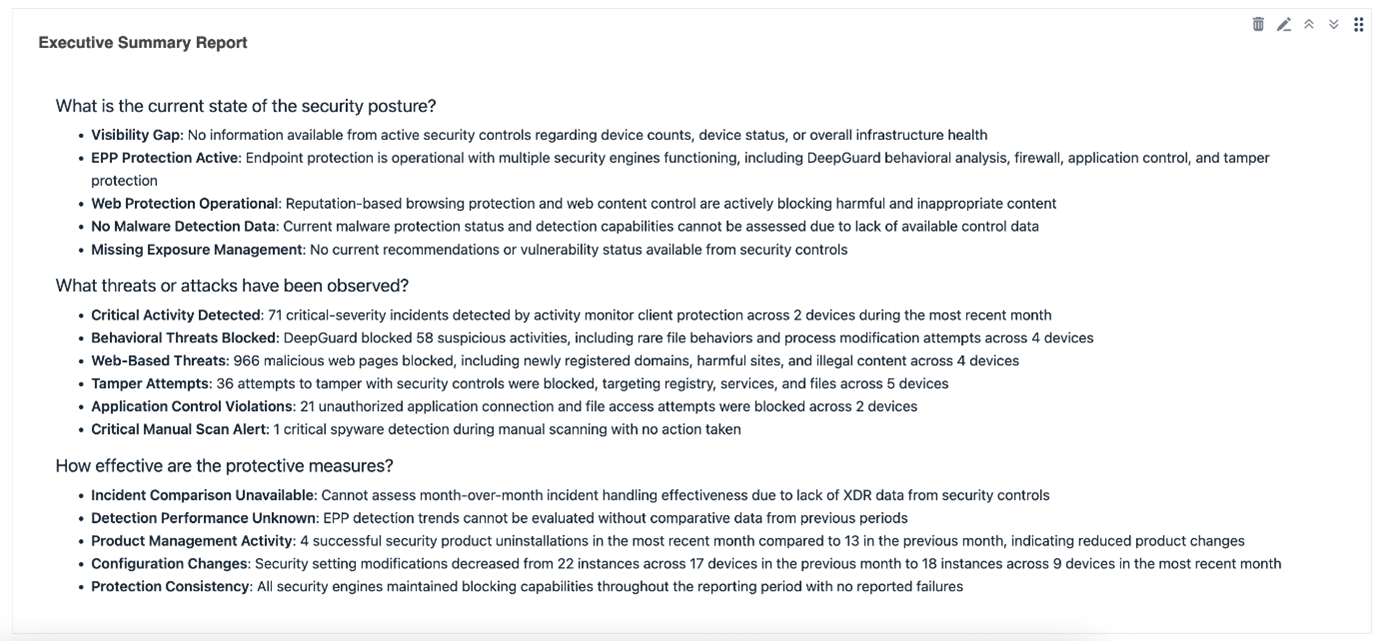
This report is suitable for anyone needing an overview of the security posture of their environment, whether it is an IT Manager or a Security Consultant.
How to get your company's Monthly Security Executive Summary Report
Setting up a reporting widget for the Monthly Security Executive Summary Report is quick and easy. Just follow these simple steps:
Open the Elements Security Center using your web browser, and log in with your user credentials.
Click on Reports in the portal's main navigation menu
Select My Report from the list of available options
Click New View Template to start creating a customized report view
These steps will help you generate a tailored report, allowing you to access relevant information.

Give your template a distinct name, such as “Executive Report”, to easily identify it later when accessing or sharing reports.
After you have finished customizing your new view template, click Save to apply and store your changes. This ensures your report is ready for future access.

Click Add Widget from the newly created report to begin customization
It is possible to customize the dashboard so that you can easily get to the report, together with relevant data visualizations or metrics. This will allow you to tailor the report to highlight key information.

Assign a name to the widget
By assigning a name to the widget, such as “Executive Report”, it is possible to clearly identify its purpose.
For the data source, choose “AI-generated summaries” and under Data, select “Executive Summary Report”. Once these fields are completed, click “Create” to add the widget to your report view.

Note for Partners
If you configure the Report creation process using your partner-level credentials, you can view the reports for each of the companies under your partner hierarchy. You configure the report and widget once, and it is automatically reusable across all companies.
Since this is a company-level Executive Report, you must choose a customer from the scope selector to generate their specific executive summary. You do not need to repeat the report creation process; simply select a different customer when needed to generate their executive summary report instantly.
