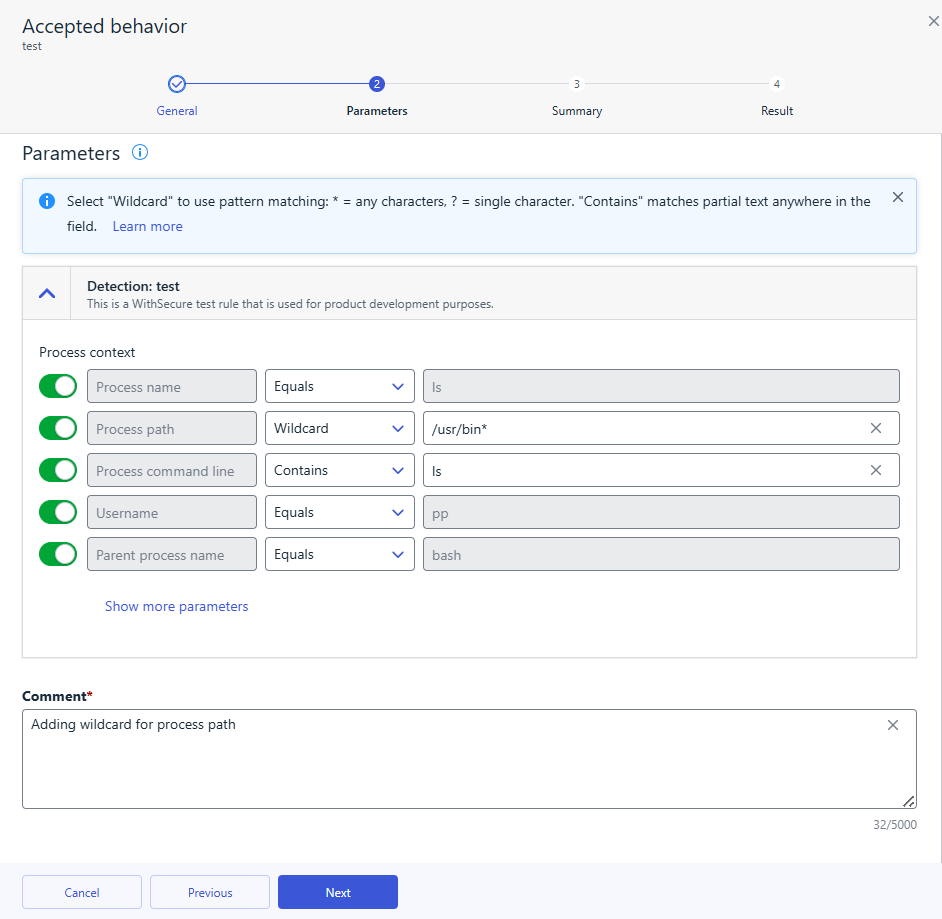
To help you create more flexible and maintainable suppression rules, wildcards are available for Accepted Behavior suppression rule parameters. Wildcards allow you to match patterns instead of exact values, making it easier to suppress recurring or similar events without creating multiple rules.
What are wildcards?
Wildcards let you define suppression rules using partial matches rather than exact strings. This is especially useful when values vary slightly, such as file names, paths, or user names.
The following wildcard characters are supported:
* – matches any sequence of characters (including empty)
Example: *.exe matches file.exe, test.exe, .exe? – matches any single character
Example: file?.txt matches file1.txt, fileA.txt
To treat wildcard characters as literal values, use the backslash (\) as an escape character:
\* – matches a literal asterisk
Example: test\*.txt matches test*.txt\? – matches a literal question mark
Example: test\?.txt matches test?.txt
Supported parameters
Wildcards are supported in suppression rules for Accepted Behavior when matching the following parameters:
- Process name
- Process path
- Process command line
- Username
- Parent process name
- Parent process path
How to use wildcards
You can create or edit wildcard-based suppression rules in two ways:
- From Events → Broad Context Detections, when closing a detection as Accepted behavior and choosing to create a suppression rule.
- From Security Configurations → Automated actions → Suppression rules, by editing an existing rule.
In both flows, select Wildcard for the chosen parameter in the Parameters step, then define the pattern using *, ?, or escaped characters as needed.
Using wildcards helps reduce rule duplication, keeps configurations cleaner, and makes suppression rules easier to maintain over time